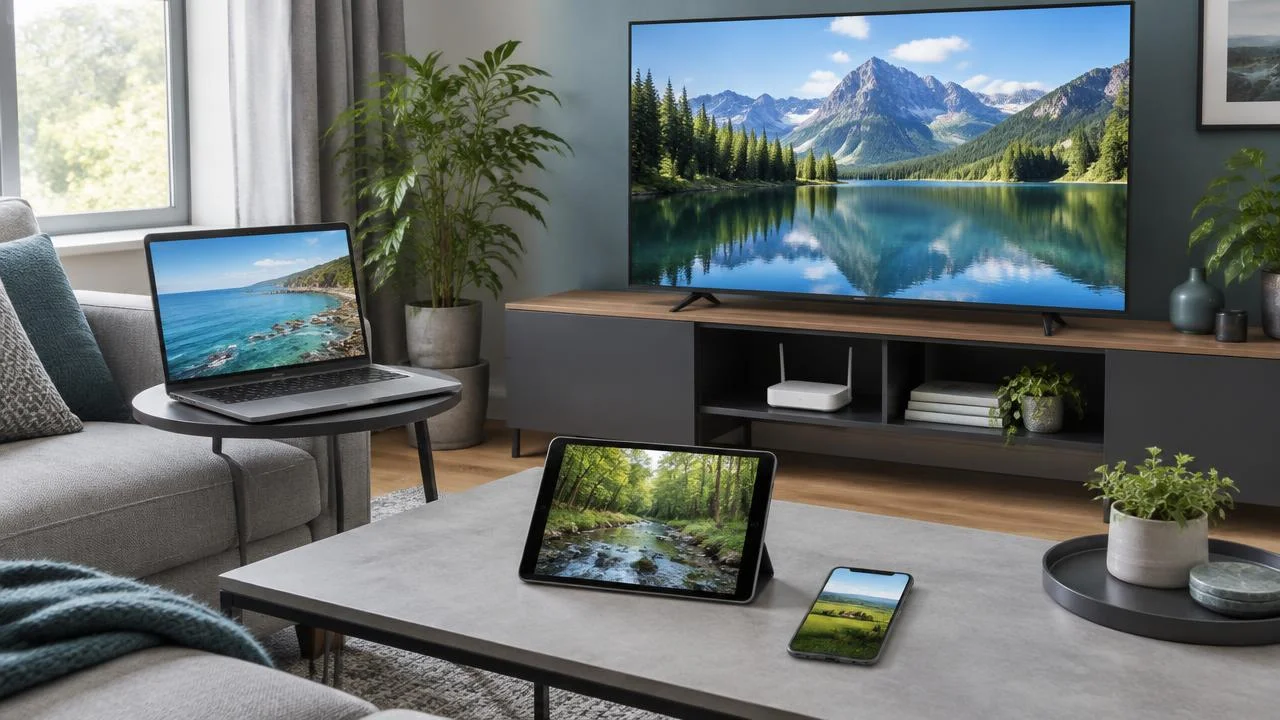
How Many Devices Can You Use With One IPTV Subscription?
With STRNG IPTV, you can watch on 1, 2, 3 or 4 devices at the same time, depending on your subscription. You can install the player on as many of your own devices as you like; what matters is how many screens are streaming at once. Pick your plan by counting viewers who watch at the same time, not the televisions you own.
This IPTV multiple devices guide walks through how connections work, real household examples, current prices and the bandwidth you need for several screens. It applies to viewers in the UK, USA and Canada, and all prices are in USD.
IPTV connections explained: what counts as a stream?
A connection is an active playback session on your subscription. Watching a programme on the living-room television uses one stream. Starting another programme on a bedroom television while the first is still playing uses a second stream, even if both televisions show the same programme.
Your device allowance and your broadband are two separate things. A fast connection won't turn a one-stream plan into a two-stream plan, and extra streams won't fix weak Wi-Fi. You need the right plan and a home network that can carry it.
Installed devices versus active devices
You might set up a player on a television, a phone and a laptop but only ever watch on one at a time. That's still a single stream. When you move rooms, stop playback on the first device before starting on the next; a television left playing in an empty room still counts.
Follow the device installation instructions for each platform. Setting up another screen is easy, and as long as only your permitted number are playing together, you're within your plan.
Does IPTV multi screen count differently?
If your player shows several live videos side by side, each video uses its own connection. Four pictures on one television count as four streams, so a multi-screen layout needs a plan that covers every picture you have open.
What happens if you go over your limit?
Each plan allows a fixed number of devices streaming at the same time. Going over that limit can get your subscription suspended, so make sure the number of screens watching at once matches your plan. If it happens, contact our WhatsApp support.
The simplest habit is to stop playback whenever you leave a screen. Phones, tablets and computers sometimes keep playing in the background, so close the player app fully when you're done. If a screen refuses to start, check that no other device is still streaming before trying again.
Restarting every device at once rarely helps. Instead, stop the extra sessions, play on your permitted number of screens and, if anything still looks wrong, send our support team the error message you see.
Compare the 1, 2, 3 and 4 device plans
The current subscription plans offer these device allowances over one, three, six or twelve months. Each amount is the total price for the whole period, not a monthly charge.
| Simultaneous streams | 1 Month (USD) | 3 Months (USD) | 6 Months (USD) | 12 Months (USD) |
|---|---|---|---|---|
| 1 | $16.99 | $29.99 | $39.99 | $59.99 |
| 2 | $29.99 | $49.99 | $69.99 | $99.99 |
| 3 | $44.99 | $74.99 | $104.99 | $144.99 |
| 4 | $59.99 | $99.99 | $139.99 | $179.99 |
All totals are in USD. If you pay in pounds or Canadian dollars, your bank or payment provider handles the conversion.
Choose the number of simultaneous streams first, then the duration that suits you. Longer plans give you more time at a lower monthly cost but don't add extra connections, so pick the device tier that matches your real viewing routine.
Household examples: how many screens really overlap?
A couple who usually watch together
One stream suits a couple who share the same television and switch screens rather than watching separately. If one of you regularly watches something else while the living-room television is on, two simultaneous streams fit that routine better.
Count the screens that play together, not every device in the house. A travel laptop that replaces the main screen doesn't need its own stream.
A family with children
Parents watching together and children sharing another screen make two active sessions. A third person watching on their own needs a third stream, and four separate videos at once call for the four-device plan, along with enough internet capacity for every screen.
Think about a normal busy evening when you decide. The Smart TV setup guide helps you get each compatible television ready.
A shared house
A multi-device plan is for one household. Our Terms of Service don't allow sharing login details with others or reselling access, so housemates with separate households should each have their own subscription. If you're unsure whether your setup fits, ask our support team before ordering.
Internet speed for several streams at once
Use our speed guidance per stream: SD 5 Mbps, HD 10–15 Mbps and 4K 25 Mbps minimum. For several streams at the same quality, simply add them together:
| Streams at the same quality | SD baseline | HD baseline | 4K minimum baseline |
|---|---|---|---|
| 1 | 5 Mbps | 10–15 Mbps | 25 Mbps |
| 2 | 10 Mbps | 20–30 Mbps | 50 Mbps |
| 3 | 15 Mbps | 30–45 Mbps | 75 Mbps |
| 4 | 20 Mbps | 40–60 Mbps | 100 Mbps |
For mixed quality, add the figures for each screen: one HD stream plus one 4K stream needs about 35–40 Mbps for viewing alone.
Remember that downloads, video calls and gaming share the same connection, so leave some headroom above these totals. Test the speed where each television actually sits, not only next to the router.
The guide to HD and 4K internet speeds explains how to measure your connection and get the most from it.
Avoid buffering when several screens are watching
- Test one screen first. Make sure the first screen plays smoothly before adding another. If it already buffers, fix that first.
- Add screens one at a time. Start the next stream and see whether all devices slow down or just one, staying within your plan's allowance.
- Strengthen the connection. Use wired Ethernet where possible or 5 GHz Wi-Fi for the best stability, especially in rooms far from the router.
- Pause big downloads. Stop large transfers and compare. If playback improves, your network needs more headroom during busy times.
- Try a lower quality. Switching a screen from 4K to HD frees up bandwidth for the others.
- Check the device itself. Keep apps updated and confirm your login details. The Firestick setup walkthrough covers that hardware step by step.
If only one programme struggles while other screens work fine, tell our support team which one. The buffering and freezing checklist helps you find the cause quickly.
Quick checklist before you choose a plan
Run through these questions with everyone in your household before ordering:
- How many screens play at the same time on a busy evening? This number is your device tier.
- Does anyone use a multi-screen layout? Count every picture that plays together.
- Which devices will you use? Check each one is covered in the installation guide so setup goes smoothly.
- Which quality do you watch in? Add up the SD, HD or 4K speeds for every screen and compare the total with your home connection.
- How long do you want to subscribe? Longer durations lower the monthly cost while keeping the same number of streams.
- Have you tried it first? A free trial lets you check channels, picture quality and your network before paying.
Answering these takes a few minutes and makes sure your plan fits the way your household really watches. If two answers point to different tiers, choose the higher number of screens; it's easier than juggling who watches when.
Need more screens later?
There is no mid-subscription upgrade. If your household grows and you need more screens, simply buy an additional subscription at the normal prices on our pricing page. For example, if you have a two-device plan and want a third screen, add a one-device subscription alongside it.
Each subscription comes with its own login details, so keep track of which devices use which login. Our WhatsApp support team is happy to help you choose the right combination.
Frequently asked questions
Can I install IPTV on several devices with a one-device plan?
Yes. You can set up as many of your own devices as you like, but a one-device plan streams on one screen at a time. Stop playback before switching screens.
What happens if too many screens watch at once?
Going over your plan's limit can get your subscription suspended, so keep the number of screens watching at once within your plan. If it happens, contact our WhatsApp support.
Can I upgrade my plan in the middle of a subscription?
There is no mid-subscription upgrade. To add screens, buy an additional subscription at the normal prices on the pricing page.
Can I test multiple screens during the free trial?
STRNG IPTV offers a free 24-hour WhatsApp trial with no payment required. Ask support how many screens your trial covers, and use the free-trial preparation checklist to get the most from your test.
STRNG IPTV offers a free 24-hour trial with no payment required. Request your trial login via WhatsApp to test channels and stream quality on your own device before choosing a plan.
Start your free 24-hour trialRelated Articles
What Internet Speed Do You Need for HD and 4K IPTV?
IPTV speed guidance: SD 5 Mbps, HD 10–15 Mbps and 4K 25 Mbps minimum. Check Ethernet, Wi-Fi and your real household connection before upgrading.
How to Fix IPTV Buffering and Freezing: 10 Fixes
Fix IPTV buffering with ten practical checks for Wi-Fi, speed, device settings and player issues. Identify the cause before paying for upgrades.
IPTV Free Trial: How to Test Before You Pay
Use a free 24-hour IPTV trial to test your device, picture quality, connection and support before paying. No payment required; request via WhatsApp.